Installation and activation
Obtaining Digital Gravelometer
Digital Gravelometer may be downloaded free of charge from Sedimetrics.com. This is the fully-featured version of the software, but is provided under a 21-day evaluation licence (the terms of which must be viewed and accepted during installation and are available from Sedimetrics.com or in the Licence agreement section of this documentation). After the evaluation period has expired, the software will cease to function unless it is unlocked with an activation code. Visit Sedimetrics.com for details of how to purchase a full licence and obtain an activation code.
Installation
To install Digital Gravelometer you will need to be logged on to your computer as an administrator.
Obtain the software installation file from Sedimetrics.com and save it in a temporary directory. Run the installation file and follow the on-screen instructions. During the course of the installation, you are required to confirm that you accept the terms of the Evaluation Software Licence Agreement.
The installer will attempt to install the Matlab Component Runtime (required by Digital Gravelometer). Continue to follow the on-screen instructions until the installation is complete. You will be asked whether to install the software for everyone or just you. Ensure that 'Everyone' is selected if you want to allow the software to be used by other people.
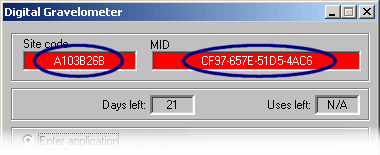
Once the installation is complete, the software must be launched for the first time from an administrator account (so that it can initialise properly). Subsequent executions may be made from any account. When Digital Gravelometer is launched, the activation dialogue is displayed. The codes on this page are required if you choose to purchase a full license for the software (see below). Click to launch the evaluation version of Digital Gravelometer.
Depending on the specification of the computer on which it installed, the software may take several minutes to load. Please be patient.
Solutions to common problems encountered during the installation of Digital Gravelometer are listed on the website: http://www.sedimetrics.com/troubleshooting.html.
Removal
To uninstall Digital Gravelometer click on the Windows taskbar and from the menu select . Follow the on-screen instructions. When prompted, select the Remove MATLAB Component Runtime radio button, and click . Alternatively, Digital Gravelometer may be removed by using the Add or Remove Programs option on the Windows Control Panel.
Activation
Obtaining an activation code
Use of Digital Gravelometer after the expiration of the 21-day evaluation period requires the purchase of a full licence, at which time you will be issued with a unique activation code to unlock the software on your computer.
Instructions on how to purchase a full licence are at Sedimetrics.com. With your order you must provide the Site code and MID that are shown in the software activation dialogue when you launch Digital Gravelometer. These codes are required to generate the activation code.
Activating the software
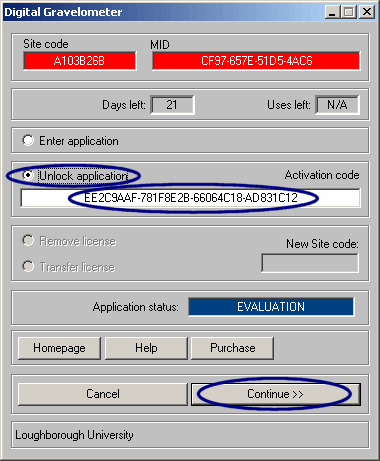
When you receive the activation code, launch Digital Gravelometer and enter the code into the Activation code edit box. Ensure the Unlock application radio button is selected and click . Please make a record of the activation code in case you need it again in the future (e.g. to transfer the licence to another computer).
 Transferring the licence to a different computer
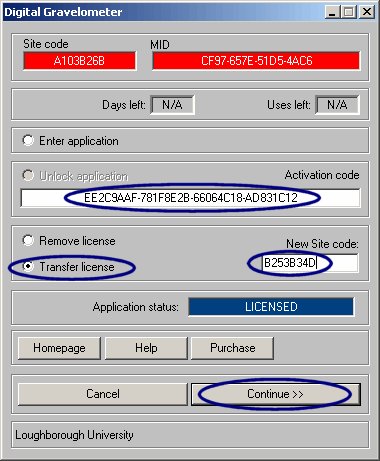
When you purchase a full licence for Digital Gravelometer, the activation code supplied is unique to your computer. If you wish to run the software on two computers, you will need to purchase a second licence. However, if you wish to transfer the licence to a different computer, you may do so with the following procedure:
- Install and launch Digital Gravelometer on the new computer. Make a note of the new Site code.
- Launch Digital Gravelometer on the old computer.
- On the old computer, enter the activation code that you originally used to unlock the software into the Activation code edit box and the site code from the new computer into the New site code edit box. Select the Transfer license radio button and click .
- A dialogue box will be displayed with a new activation code which may be used to unlock the program on the new computer. Please make a note of the new activation code in case you need it again in the future (e.g. to transfer the licence to another machine).
Upgrading your computer
The activation code provided to you is specific to a particular computer. Certain types of upgrade will result in the software ceasing to work. Before replacing your CPU or formatting/replacing your hard disk, follow the instructions below to remove your licence from the computer. This will enable a new activation code to be calculated based on the new hardware.
- Launch Digital Gravelometer.
- Enter the activation code that you originally used to unlock the software into the Activation code edit box. Select the Remove license radio button and click .
- A dialogue box will be displayed containing a Removal code. Make a note of this code.
- Upgrade your computer.
- Launch Digital Gravelometer. Send the new Site code and MID, along with the Removal code, to info@sedimetrics.com.
- We will send you a new activation code.
If you upgraded your computer without removing the licence and Digital Gravelometer no longer works, please contact info@sedimetrics.com for advice. Include a description of the upgrade performed. In most circumstances a new activation code will be issued.